Steam
Getting Started
Getting Started
First you need a Pharo 6.1 image, if you don't have it you can create a new one with Pharo Launcher.
Installation
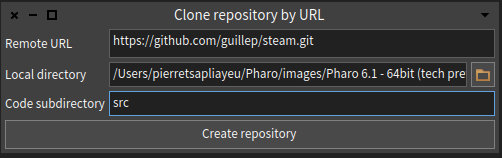
In the Pharo image open Iceberg and clone Steam's github repository.
url : https://github.com/guillep/steam.git
repository : src
Now you have to install the baseline of steam.
It will download all the needed packages.
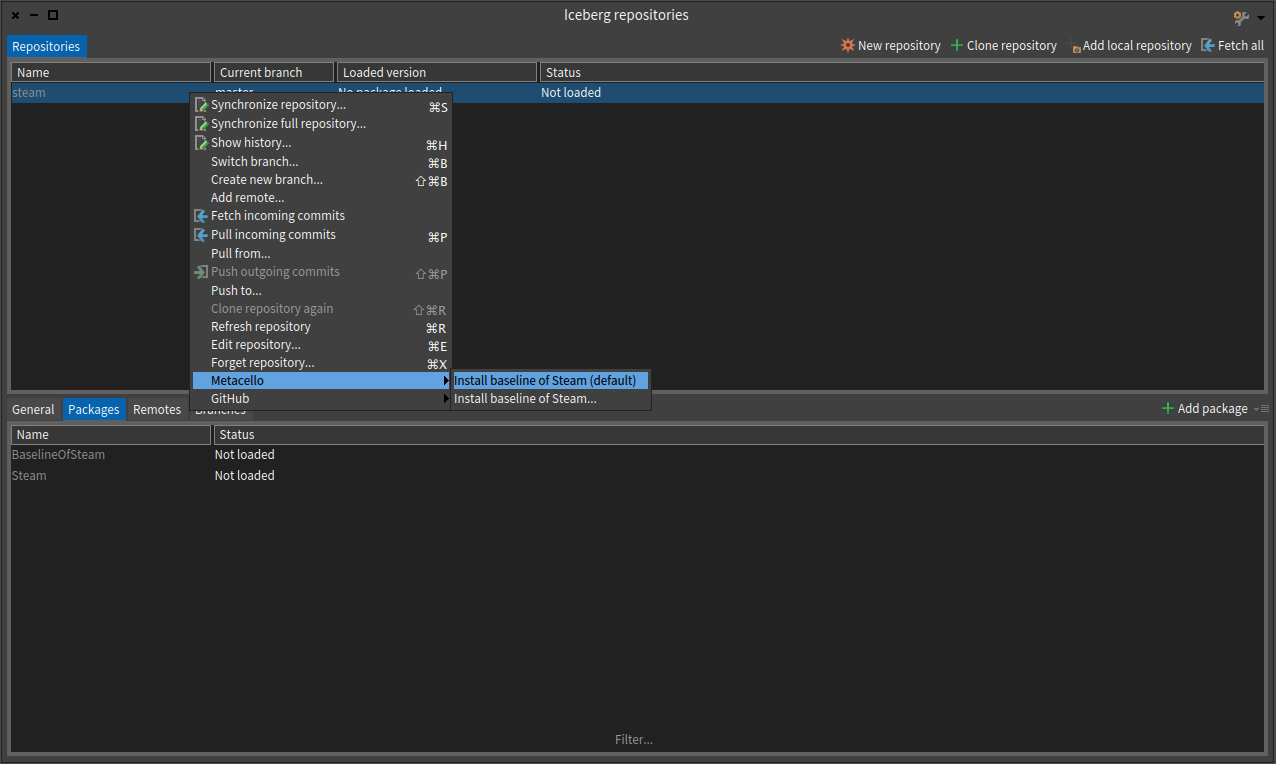
If Iceberg gives you the choice between load existing or incoming version you can choose the first one if the version is greater (higher). It will take a few minutes (usually around 4 or 5 minutes).
Ok, this is it ! All you will need is here, now you can continue with the initialization.
Steam application component
First we need to create a subclass of STApplicationRootComponent, you can name it GameManager for example.
STApplicationRootComponent subclass: #GameManager
	instanceVariableNames: ''
	classVariableNames: ''
	package: 'Steam-Game-Manager'
To make it work we need to override some superclass methods.
We begin with the initialization :
GameManager >> initialize
	super initialize.

	"Here you can choose your login object"
	login := STBasicLogin on: self.

	"Here you can define your application menu"
	menuEntries := {}
For now menuEntries is empty but we will create some classes to fill it up soon enough.
We need a title for our application.
GameManager >> title
	"title will be diplayed on each web application page"

	^ 'Game Manager'
In the class side. The applicationName is the url extention for your website.
GameManager class >> applicationName
	"applicationName will be diplayed on the web application url"

	^ 'Game Manager'
We also need to override the createNewStore method to select the store we want to use.
GameManager >> createNewStore
	^ STMemoryStore on: self
For now we're using a memory store to begin with. This store is just a playbox, so every object which is stored will be lost if you start a new session.
Simple Object
Now let's create a simple new STObject subclass. For example let's call it GMCategory. With an instance variable title which will be just a string representing the title.
STObject subclass: #GMCategory
	instanceVariableNames: 'title'
	classVariableNames: ''
	package: 'Steam-Game-Manager'
Add accessors.
GMCategory >> title
	^ title
GMCategory >> title: aString
title := aStringAlso a class side title.
GMCategory class >> title
	^ 'Categories'
And we need to add the description for Magritte.
GameManager >> descriptionTitle
	<magritteDescription>
	^ MAStringDescription new
		label: 'Title';
		accessor: #title;
		beRequired;
		requiredErrorMessage: 'We cannot proceed without a title.';
		priority: 100;
		yourself
Now we can add our new class to the menuEntries in STManager.
GameManager >> initialize
	super initialize.

	"Here you can choose your login object"
	login := STExampleLogin on: self.

	"Here you can define your application menu"
	menuEntries := {
		STListAction on: GMCategory title: 'Categories'
	}
After all is done, you can open a Playground then type and execute this code :
GameManager startOn: 8181.Now you can use your favorite browser and go at this address : localhost:8181/Game Manager.
More complex Object
We can now create a new STObject subclass which will contain a GMCategory object.
STObject subclass: #GMGame
	instanceVariableNames: 'title category rating'
	classVariableNames: ''
	package: 'Steam-Game-Manager'
Accessors..
GMGame >> title
	^ title
GMGame >> title: aString
title := aStringGMGame >> category
^ categoryGMGame >> category: aGMCategory
category := aGMCategoryGMGame >> rating
^ ratingGMGame >> rating: aNumber
rating := aNumberA class side title.
GMCategory class >> title
	^ 'Games'
And the descriptions.
GMGame >> descriptionTitle
	<magritteDescription>
	^ MAStringDescription new
		label: 'Title';
		accessor: #title;
		priority: 10;
		beSearchField;
		beRequired;
		requiredErrorMessage: 'We cannot proceed without a title.';
		componentClass: TBSMagritteTextInputComponent;
		yourself
GMGame >> descriptionCategory
<magritteDescription>
^ MASingleOptionDescription new
label: 'Category';
accessor: #category;
priority: 20;
options: ([steamApplication queryAll: GMCategory] on: Error do: [ nil ] );
comment: 'Select a category';
beSorted;
componentClass: TBSMagritteSelectListComponent;
requiredErrorMessage: 'You have to create a new category.';
beRequired;
beSearchField;
propertyAt: #STObjectClass put: GMCategory; "the class to refer to"
yourselfGMGame >> descriptionRating
<magritteDescription>
^ MANumberDescription new
priority: 30;
label: 'Rating';
accessor: #rating;
comment: 'Game''s rating';
min: 1;
max: 10;
beRequired;
beSearchField;
yourself
Add our new class to the menuEntries.
GameManager >> initialize
	super initialize.

	"Here you can choose your login object"
	login := STExampleLogin on: self.

	"Here you can define your application menu"
	menuEntries := {
		STListAction on: GMGame title: 'Games'.
		STListAction on: GMCategory title: 'Categories'
	}
On your web page create a new session by clicking on "New Session" on the bottom left of the page in order to see the modifications.
Search Component
Now we will create a new component to search a string match in games, let's call it GMSearchGameByTitle. This component will query in the database and show all the games which satisfy the request.
STObject subclass: #GMSearchGameByTitle
	instanceVariableNames: 'results searchValue'
	classVariableNames: ''
	package: 'Steam-Game-Manager'
Override initialize and title.
GMSearchGameByTitle >> initialize
	super initialize.
	results := #()
GMSearchGameByTitle >> title
"this search component has no title"
^ ''Add accessors..
GMSearchGameByTitle >> results
	^ results
GMSearchGameByTitle >> results: anObject
results := anObjectGMSearchGameByTitle >> searchValue
^ searchValueGMSearchGameByTitle >> searchValue: anObject
searchValue := anObjectAdd the descriptions.
GMSearchGameByTitle >> descriptionResults
	<magritteDescription>
	^ MAToManyRelationDescription new
		label: 'Games';
		accessor: #results;
		beSearchResult;
		yourself
GMSearchGameByTitle >> descriptionSearchField
<magritteDescription>
^ MAStringDescription new
accessor: #searchValue;
beSearchField;
comment: 'Search for games';
beRequired;
yourself
And to finish the action method search.
GMSearchGameByTitle >> search
	results := (steamApplication query: GMGame with: searchValue)
Add our new class to the menuEntries.
GameManager >> initialize
	super initialize.

	"Here you can choose your login object"
	login := STExampleLogin on: self.

	"Here you can define your application menu"
	menuEntries := {
		STListAction on: GMGame title: 'Games'.
		STListAction on: GMCategory title: 'Categories'.
		STSearchAction on: (GMSearchGameByTitle onSteamApplication: self) title: 'Search Games'
	}
This component is a subclass of STSearchAction because it has a different behaviour unlike the GMGame and GMCategory classes.
Again start a new session to see our new component :).
Magritte review
There is some examples of properties you can add in the magritte description and thier purpose.
"For the most of MADescription"
priority: 10 ; "here you can use integer to define the order elements will be displayed"
beRequired ; "specify if this can't be empty"
requiredErrorMessage: 'This can not be empty !!'; "the message to show if the user does not fill out this form field"
beSorted ; "specify if it can be sorted"
addCondition: [ :value | value <= Date today ] labelled: 'You can select only today''s day or an ulterior day'; "for example for dates"
comment: 'Select a category'; "this is displayed near the form field"

"For MANumberDescription"
min: 1; "it defines the minimum and maximum that can be accepted"
max: 9;

"For MAReferenceDescription subclasses"
options: #('Bern' 'Solothurn' 'Aargau'); "so the user can choose one of these, (can be an array of any object)"